
How to Convert Text to Uppercase, Lowercase and Title Case
Convert text to uppercase, lowercase, title, sentence or proper case, learn the AP and Chicago title-case rules, and avoid Turkish and German casing traps.
 UrwaTools Editorial Updated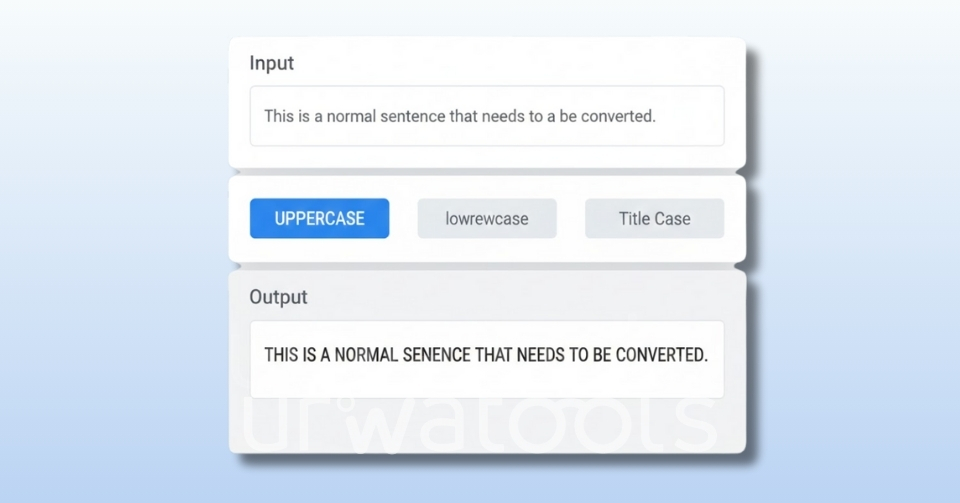
Contents
Learning to convert text to uppercase, lowercase and title case sounds like a five-second job, and for a single headline it is. It stops being one the moment you are staring at 400 product names pasted out of a supplier spreadsheet, a CSV of bylines shouting in all caps, or meta titles that three writers capitalised three different ways.
That is when a text case converter stops being a novelty and becomes part of your editing workflow. Paste, pick a case, copy the result. No retyping, no muscle-memory Shift key errors, no silent inconsistencies that only surface after publication.
This guide covers every case type worth knowing, the style-guide rules that make title case genuinely contentious, the shortcuts built into Word, Google Docs and spreadsheets, and the Unicode edge cases that break automatic conversion in Turkish, German, Greek and Dutch.
Why Case Conversion Is Worth Automating
Manual capitalisation fails in three predictable ways. You miss a word. You capitalise the same word differently on two pages. Or you retype a string and introduce a typo that was never in the source. Individually these are trivial; collectively they make a site look unmaintained.
Automating the job with an online text case tool gives you:
- Consistency across a whole set. One rule applied to 400 rows beats 400 individual judgement calls.
- Speed on bulk work. Product catalogues, inventory lists and metadata sheets convert in one paste.
- Clean source text. Copying from PDFs and slide decks drags in mixed casing that a converter normalises immediately.
- Fewer typos. Transforming existing text cannot introduce spelling errors the way retyping can.
- Reversibility. Lowercase first, then apply the case you want, and you always have a predictable starting state.
The Text Cases You Actually Need
Most converters expose the same core transformations under slightly different labels. Here is what each does and when it earns its place.
Uppercase
Every letter becomes a capital: "hello world" becomes "HELLO WORLD". It suits short labels, banners and table headers, where the extra weight helps a reader scan, and suits anything longer badly, because all-caps removes the ascender and descender shapes readers use to recognise words at a glance.
Lowercase
Every letter becomes small: "HELLO WORLD" becomes "hello world". This is the most useful conversion of the lot, and not for stylistic reasons: lowercasing is how you normalise data before comparing or deduplicating it. It is also the correct first step before applying any other case, because it wipes out whatever inconsistent capitalisation the source contained. A dedicated uppercase to lowercase converter handles the common case of rescuing text that arrived shouting.
Title Case
Major words are capitalised, minor words are not: "how to convert text" becomes "How to Convert Text". This is the case headlines, article titles and page titles use, and it is the one where automated tools disagree with each other, because the style guides they implement disagree with each other. The next section deals with that properly.
Sentence Case
Only the first letter of each sentence is capitalised, plus proper nouns: "THIS IS AN EXAMPLE" becomes "This is an example". It is the default for body copy, meta descriptions, UI microcopy, social captions and alt text. Many publications, including most technical documentation, now use it for headings too, because it reads faster and sidesteps the title-case argument entirely.
Proper Case (Capitalise Each Word)
Every word gets an initial capital regardless of what it is: "convert full text smartly" becomes "Convert Full Text Smartly". This is not title case: proper case capitalises "the", "of" and "and", and title case does not. Use it for name fields, menu items and short product labels, where every word is significant anyway.
Toggle Case (Inverse Case)
Each letter flips: "Hello World" becomes "hELLO wORLD". Toggle case, also called invert case, is a diagnostic more than a style. Running it over a block of text makes stray capitals obvious, which is a quick way to spot text typed with Caps Lock on.
Slug, Snake and Camel Case
Machine-readable variants: kebab-case for URLs, snake_case for database columns, camelCase for code identifiers. For a clean URL path, a purpose-built text to slug converter beats lowercasing by hand, because it also strips punctuation, transliterates accented characters and collapses separators.
Quick Reference
| Case | "the art of clean code" becomes |
|---|---|
| Uppercase | THE ART OF CLEAN CODE |
| Lowercase | the art of clean code |
| Sentence case | The art of clean code |
| Title case | The Art of Clean Code |
| Proper case | The Art Of Clean Code |
| Toggle case | tHE ART OF CLEAN CODE |
| Kebab case | the-art-of-clean-code |
| Snake case | the_art_of_clean_code |
Title Case Is Not One Rule: AP, Chicago, APA and MLA
If two title case tools give different output for the same headline, neither is necessarily broken. They implement different style guides, and the guides genuinely differ, mainly over prepositions.
Every major style agrees on three things: capitalise the first word, capitalise the last word, and capitalise all nouns, pronouns, verbs, adjectives and adverbs. They also agree that articles ("a", "an", "the") and coordinating conjunctions ("and", "but", "or", "nor", "for") stay lowercase mid-title. The disagreement is over how long a preposition must be to earn a capital.
| Style guide | Preposition rule | "working with data from the field" |
|---|---|---|
| AP (Associated Press) | Capitalise prepositions and conjunctions of four letters or more | Working With Data From the Field |
| Chicago, 18th edition | Capitalise prepositions of more than four letters; lowercase shorter ones | Working with Data from the Field |
| Chicago, 17th edition and earlier | Lowercase all prepositions regardless of length | Working with Data from the Field |
| APA, 7th edition | Capitalise major words plus any word of four letters or more | Working With Data From the Field |
| MLA | Lowercase prepositions regardless of length | Working with Data from the Field |
Note what changed recently: Chicago's 18th edition capitalises prepositions of more than four letters, reversing its long-standing practice of lowercasing every preposition. That still leaves four-letter prepositions such as "with", "from", "into" and "over" lowercase in Chicago while AP and APA capitalise them — the single most common source of "why does this tool capitalise differently" confusion.
The Four-Letter Trap
A length rule is easy to code and easy to get wrong, because word length is not word class. "Is" is two letters and always capitalised, because it is a verb. "Up" is two letters but is capitalised in "Look Up the Answer", because there it is part of a phrasal verb rather than a preposition. Any converter applying a pure length threshold produces output that needs a human read-through.
Words No Converter Should Touch
Automatic title case flattens things it should leave alone. Brand names with internal capitals (iPhone, eBay, YouTube), acronyms (NASA, HTML, SEO), Scottish and Irish surnames (McDonald, O'Neill) and hyphenated names (Jean-Luc) all get mangled by a naive word-by-word capitaliser. A rule that treats an apostrophe as a word boundary turns "it's a dog's life" into "It'S A Dog'S Life". Scan converted headlines for these before publishing.
The practical question is not which guide is right but which you are using. Choose one, record it in your style sheet, and apply it to headlines, page titles and navigation labels alike. When optimising titles for search results, a title tag optimizer shows how the finished title renders at typical result widths, which usually matters more than the preposition rule.
How to Convert Text Case in Five Steps
- Normalise to lowercase first. Convert the whole block to lowercase before anything else. This removes inherited inconsistency and gives every subsequent rule a predictable input.
- Strip the invisible mess. Text pasted from PDFs, Word and web pages carries double spaces, trailing spaces and stray line breaks. Run it through a whitespace remover so word boundaries are unambiguous, and use a line break remover when a paragraph has been broken into fragments.
- Apply the case you actually want. Title case for headings, sentence case for body copy and descriptions, proper case for name and label fields, lowercase for slugs and data keys.
- Restore the exceptions by hand. Put back acronyms, brand capitalisation, surnames and any non-English characters the converter changed. This is the step people skip, and the step that catches the errors.
- Check the length before you ship. Headlines and meta titles have practical limits, so confirm the finished text with a word and character counter before it goes into your CMS.
Built-In Shortcuts in Word, Docs and Spreadsheets
Microsoft Word
Select the text and press Shift + F3 to cycle through lowercase, capitalise each word and uppercase. The full set, including sentence case and tOGGLE cASE, lives under Home → Change Case in the Font group.
Google Docs
Select the text and choose Format → Text → Capitalization, which offers lowercase, UPPERCASE and Title Case. There is no default keyboard shortcut, though add-ons can supply one.
Excel and Google Sheets
Spreadsheets handle case with three functions: UPPER(), LOWER() and PROPER(). Note that PROPER() is proper case, not title case: it capitalises every word, and it capitalises the letter after an apostrophe, so "o'neill" becomes "O'Neill" correctly but "it's" becomes "It'S". Convert in a helper column, check the results, then paste the values back.
Where Automatic Case Conversion Goes Wrong
Case conversion looks like a per-character lookup, and for plain English it nearly is. Outside English it is genuinely locale-dependent, and the failures are silent.
Turkish and Azerbaijani: Dotted and Dotless I
Turkish has four distinct letters where English has two. Lowercase "i" pairs with the dotted capital "İ" (U+0130), and the dotless lowercase "ı" (U+0131) pairs with plain capital "I". The Unicode special-casing rules encode this for the tr and az locales specifically: in Turkish, "i" uppercases to "İ" and "I" lowercases to "ı".
A locale-unaware converter uppercases "istanbul" to "ISTANBUL" when Turkish requires "İSTANBUL". The reverse hurts more: lowercasing "İ" outside a Turkish locale yields "i" plus a separate combining dot-above character, so the result looks right but is two code points where you expected one, and comparisons against it fail. For Turkish or Azerbaijani text, confirm your tool applies locale-aware casing.
German: The Sharp S
Uppercasing German "ß" is not a one-to-one swap. The default Unicode mapping turns "ß" into "SS", so "straße" becomes "STRASSE" — one character becomes two, and the conversion is not reversible, because lowercasing "STRASSE" gives you "strasse" with a double s rather than the original "ß".
German orthography now also permits a capital sharp s, "ẞ" (U+1E9E), as an alternative to SS, a change made in the 2017 version of the official ruleset issued by the Council for German Orthography. Which form a tool produces is a design choice, so check the output rather than assuming.
Greek Final Sigma and Dutch IJ
Greek lowercase sigma has two forms: "σ" mid-word and "ς" at the end, so correct lowercasing of "ΟΔΟΣ" is "οδος" with a final sigma — which requires the converter to know where the word ends. Full Unicode case mapping handles this; a naive character-by-character table does not.
Dutch has the opposite problem in title case. The digraph "IJ" capitalises as a unit, so "ijsland" should become "IJsland", not "Ijsland". Almost no general-purpose converter gets this right, so treat Dutch place names and surnames as manual corrections.
Cleaning Text Before and After Conversion
Case conversion is one step in a cleanup, not the whole job. Text from a PDF, a supplier feed or a scraped page needs several passes, and a line break cleanup is often the first. The usual follow-ups:
- Collapse repeated spaces and trim line ends, so later processing sees consistent word boundaries.
- Remove blank lines left behind by exports with an empty lines remover.
- Drop repeated rows from merged lists using a duplicate lines remover. Do this after lowercasing, or "Widget" and "widget" survive as two separate entries.
- Sort the result alphabetically with a text sorter when you need a scannable list or a diffable file.
- Check length once the copy is final, using a word count guide to judge whether the piece is the right size.
Working in that order — clean whitespace, normalise case, deduplicate, sort — produces a repeatable result.
Choosing the Right Case for Your Content
Different tasks call for different capitalisation. This table reflects common web publishing practice rather than any single style guide.
| Purpose | Recommended case |
|---|---|
| Blog and page titles | Title case, under one documented style guide |
| Subheadings | Title case or sentence case, applied consistently |
| Body paragraphs | Sentence case |
| Meta descriptions | Sentence case |
| Buttons and UI labels | Sentence case or title case, rarely all-caps |
| Product and menu names | Proper case |
| URL slugs and tags | Lowercase with hyphens |
| Data keys and code | Lowercase, snake case or camel case |
| Social captions | Sentence case |
Frequently Asked Questions
What is the difference between title case and proper case?
Title case capitalises significant words and leaves articles, short prepositions and coordinating conjunctions lowercase: "the art of clean code" becomes "The Art of Clean Code". Proper case capitalises every word, giving "The Art Of Clean Code". Title case belongs on headlines, proper case on name and label fields.
Which title case style should I use, AP or Chicago?
Neither is more correct; they are conventions for different fields. AP is the news and marketing default and capitalises prepositions of four letters or more. Chicago is the book and academic default and, from its 18th edition, capitalises prepositions of more than four letters. Pick the one your industry expects and apply it consistently.
Does capitalisation in a title affect SEO?
Capitalisation is not a ranking signal, and search engines treat "Text Case Converter" and "text case converter" as the same words. What it affects is the click-through decision: a conventionally capitalised title reads as maintained, while a mid-sentence all-caps word reads as spam. Optimise it for the reader, not the crawler.
Why does my converter capitalise Turkish or German words incorrectly?
Because case conversion is locale-dependent. Turkish pairs "i" with the dotted capital "İ" and plain "I" with the dotless "ı", so a tool using the default English mapping gets both directions wrong. German "ß" expands to "SS" by default, changing the string length and making the conversion irreversible. Check non-English output by hand, or use a tool that applies locale-aware casing.
Can I convert thousands of rows at once?
Yes, but choose the right instrument. In a spreadsheet, UPPER(), LOWER() and PROPER() in a helper column process an entire column at once. For a plain-text list, paste the whole block into a case converter rather than working line by line. For anything recurring, a short script applies the same rule every time.
How do I undo an all-caps block of text?
Convert it to lowercase first, then apply sentence case or title case. You cannot recover the original capitalisation from all-caps text — that information is gone — so restore proper nouns, acronyms and brand names manually afterwards. This is why lowercasing is the standard first step in any case cleanup.
The Short Version
Convert to lowercase first, apply the case the context calls for, and check the exceptions by hand. Use sentence case for anything read as prose, title case for headings under one documented style guide, proper case for labels, and lowercase for anything a machine reads. Watch acronyms, brand names, apostrophes and non-English characters, because those are the four places automatic conversion reliably fails. Everything else is repetition, and repetition is what tools are for.
Frequently asked questions
What is a text case converter?
A text case converter is an online tool that changes the capitalization style of any text. It can convert text to uppercase, lowercase, title case, sentence case, proper case, or toggle case. These tools help writers, students, and marketers format content quickly without manual editing.
Can I convert long paragraphs or bulk text at once?
Yes. Most online converters support large paragraphs, lists, and even full pages of content.
Some platforms have batch capitalization tools. These tools let you process many lines at once. It is useful for product catalogues, spreadsheets, and SEO metadata.
What is the difference between title case and proper case?
Title case capitalizes major words in a headline. In contrast, proper case capitalizes the first letter of every word. People often use proper case for product names and menu items. They find title case better for blog headings and SEO titles.
Do these tools remove extra spaces or formatting issues?
Many converters include cleanup features such as trimming whitespace, removing double spaces, and fixing broken line breaks. It makes your text cleaner and ready for publishing.
Are keyboard shortcuts faster than using online tools?
Keyboard shortcuts, like Shift + F3 in Word, help you make quick edits. However, online tools give you more control. They offer more formatting styles and batch options that desktop apps do not provide.
The UrwaTools Editorial Team delivers clear, practical, and trustworthy content designed to help users solve problems efficiently. Our articles focus on accurac...